

By the Vertexweb team. Last reviewed November 2026.
Google Search Console is a free tool that shows how your website appears in Google search and warns you about problems. It tells you which searches bring people to your site, which pages Google has indexed and whether anything is stopping your pages from ranking. Every small business website should have it. This guide covers setup and the reports that matter.
Key takeaways
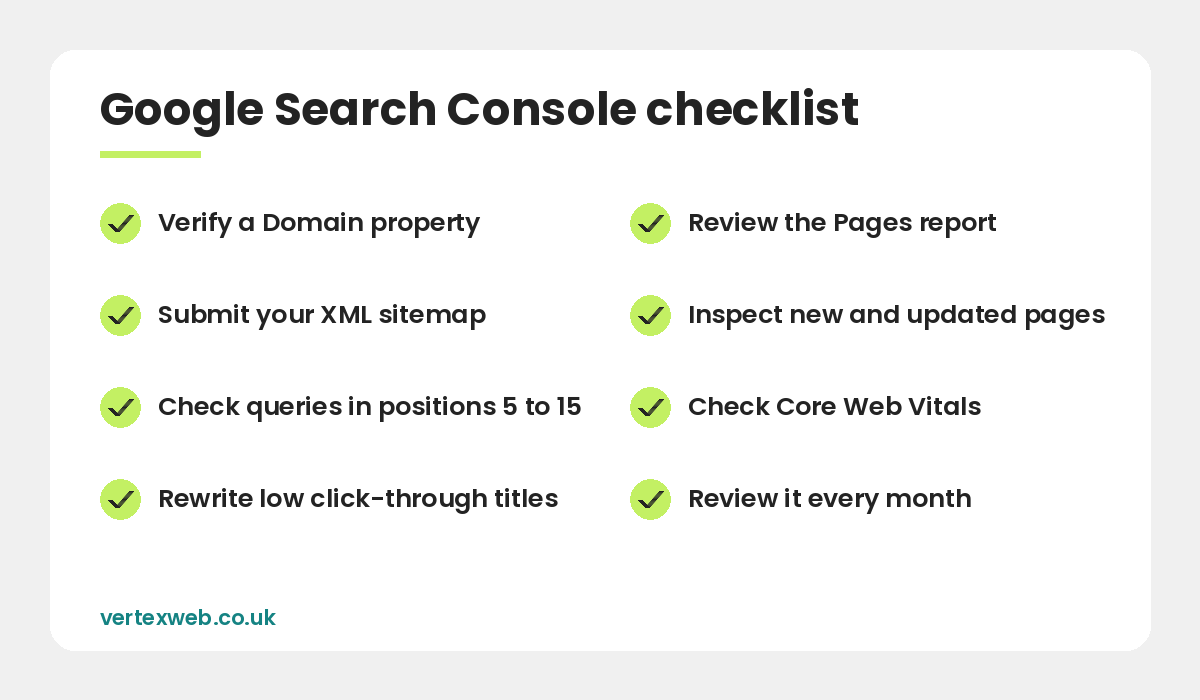
- Verify your whole domain with a DNS record for the most complete data.
- Submit your XML sitemap.
- Use the Performance report to find queries and pages with potential.
- Check the Pages report for indexing problems.
- Use URL Inspection after publishing or updating important pages.
How to set up Google Search Console
- Go to search.google.com/search-console and sign in with your Google account.
- Choose a Domain property and enter your domain, such as example.co.uk.
- Add the TXT record Google gives you to your domain’s DNS settings. Your host or domain registrar can help.
- Click verify. It can take a few minutes to a few hours.
- Submit your sitemap, usually at /sitemap_index.xml if you use Rank Math or Yoast.
The Performance report
This is the most useful report. It shows clicks, impressions, click-through rate and average position for the searches that show your site.
- Queries: the words people searched.
- Pages: which pages appeared and got clicks.
- Countries and devices: useful for local businesses to check UK and mobile performance.
Set the date range to the last three months and compare with the previous period.
Find quick SEO wins
- Positions 5 to 15: filter for queries with an average position between 5 and 15. Improving those pages can push you onto page one or into the top three.
- High impressions, low clicks: rewrite the title and meta description to be clearer and more appealing.
- Unexpected queries: if people find you for a service you do not have a page for, create one.
- Location searches: look for town names in queries and strengthen those area pages.
Check indexing and errors
The Pages report shows which pages are indexed and why others are not. Some exclusions are normal, such as redirects and tag pages. Look out for important pages marked ‘Crawled, currently not indexed’ or ‘Discovered, currently not indexed’, which often means the content is thin or the page is poorly linked. Use URL Inspection to check a single page and request indexing after changes.
Other reports worth knowing
- Core Web Vitals: speed and stability for real users.
- HTTPS: pages not served securely.
- Links: your top linked pages and linking sites.
- Manual actions and security issues: rare, but serious if they appear.
Common questions
Is Google Search Console free?
Yes, it is completely free from Google.
How long until data appears in Search Console?
Usually a few days after verification. Data is available for the last 16 months once collected.
Should I request indexing for every page?
No. Submit a sitemap and use URL Inspection only for new or important updated pages.
What is a good click-through rate?
It depends on position. Top three positions often get far more clicks. Compare your pages against each other to find weak titles.
Final thoughts
Google Search Console is the easiest way to see your website through Google’s eyes. Set it up, submit your sitemap and spend 20 minutes a month finding quick wins. Pair it with Google Analytics 4 for the full picture, or see our SEO services.
Want help with this?
We can set up Search Console, fix indexing issues and turn the data into a clear SEO action plan. Request a free quote or call +44 7446 776057.